From Zero to Full Observability: A Practical Guide to Broadleaf's OpenTelemetry Integration
Written by
Elbert Bautista
Published on
Dec 02, 2025
IMPORTANT: The following guide is only applicable for manifest-based projects targeting release trains 2.1.5+ or 2.2.1+
A hands-on walkthrough of setting up, customizing, and deploying production-ready monitoring for your Broadleaf Commerce platform.
You understand that observability is critical for your eCommerce platform. You know about metrics, logs, and traces. But how do you actually implement it in your Broadleaf project? More importantly, how do you tailor it to surface the insights that matter most for your business?
This guide walks you through the complete journey, from initial setup in your local environment to production deployment with custom instrumentation that tracks your unique business flows.
Part 1: Setup in Under 5 Minutes
Let's start with the easy part: getting comprehensive observability running locally requires just a few lines of configuration..
Enabling OpenTelemetry Support
Open your project's manifest.yml and add these properties:
project:
  supportOpenTelemetry: true
  enableOpenTelemetryInLocal: false
The first property tells Broadleaf to include OpenTelemetry instrumentation in your build artifacts. The second controls whether it runs in your local Docker Compose stack. We'll enable this shortly, but keeping it disabled initially keeps your local startup lean.
Next, add the reference APM component to your manifest:
others:
  - name: otellgtm
    platform: otellgtm
    descriptor: snippets/docker-otel.yml
    enabled: true
    domain:
      cloud: otellgtm
      docker: otellgtm
      local: localhost
    ports:
      port: '4317'
      addl: '4318'
      web: '3030'
Finally, include it in your Docker Compose components:
docker:
  components: [...existing-components...],otellgtm
Generating Your Instrumented Project
From your project's manifest directory, run:
mvn flex:generate
This regenerates your project configuration with OpenTelemetry support. The broadleaf-open-telemetry-starter dependency now appears in your service pom files, and your Docker images will include the OpenTelemetry JavaAgent.
Launching Your Observable Stack
Start your stack as usual:
mvn docker-compose:up
When enableOpenTelemetryInLocal is true, your services now send telemetry data to the included Grafana OTEL-LGTM stack. Access the dashboard at http://localhost:3030 (default credentials are in the Grafana documentation).
Within minutes of your first requests, you'll see traces, metrics, and logs flowing through the system.
Part 2: Understanding What You're Seeing
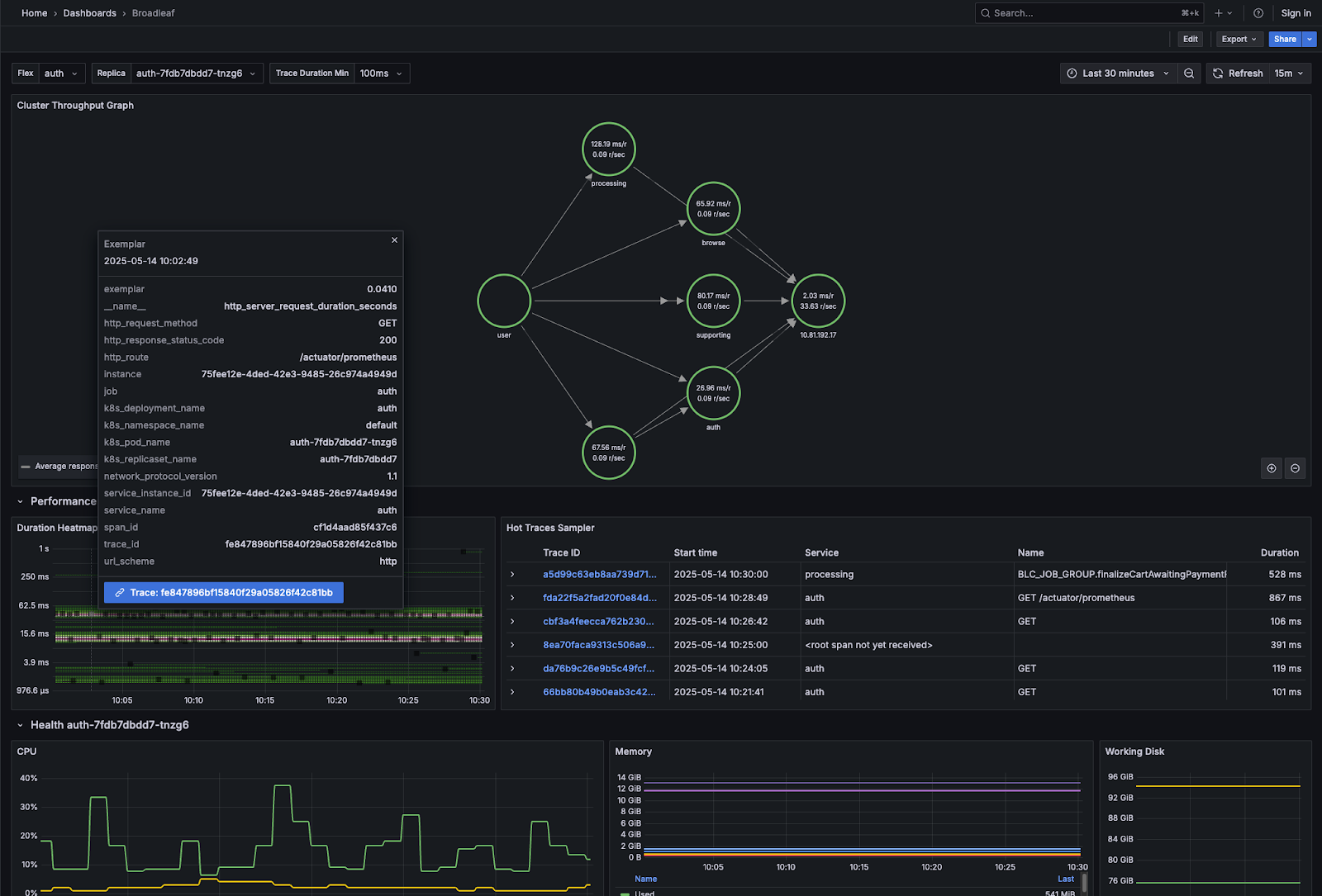
The reference dashboard isn't just pretty visualizations. Each section answers specific questions you'll have when troubleshooting or optimizing your platform.
The Cluster Throughput Graph: Your System at a Glance
This visualization shows every component in your stack, the connections between them, and crucially, the success versus error rate for each interaction. When something breaks, this is a good starting point to help visualize and isolate any problems at a high level". The red edges immediately show you where failures are occurring.
Performance Section: Finding the Bottlenecks
Duration Heatmap - This performance visualization leverages a colormap using color intensity to show where your response times cluster. You'll see dense color bands delineating possible problem spots. Once identified, you can even click on each dot and jump directly to the full distributed trace.
Hot Traces Sampler - Automatically surfaces traces exceeding your performance threshold. Set it to 1000ms, and you'll see every request taking longer than a second.
Health Section: Beyond CPU and Memory
Standard metrics are here (CPU, memory, disk), but the real value is in the e-commerce-specific insights:
GC Pause Duration and GC Pressure demonstrate any impacts related to garbage collection. GC Pressure specifically displays time spent in GC as a percentage of total GC time.
Thread States breakdown reveals if you're spending most of your time waiting on I/O, blocked on locks, or actually running, critical for diagnosing performance issues that don't show up as high CPU usage.
Connection Pool: The Often-Overlooked Bottleneck
This section prevents a common e-commerce disaster: running out of database connections during peak traffic.
Connection Pool Size over time reveals leaks before they cause outages. This metric is useful for identifying possible connection leakage or over-utilized pools. This can contribute to excessive blocking, which typically manifest itself as slow response times without high CPU usage
Total Acquire Time shows how long threads wait to get a connection. If this spikes during high traffic, your pool may be undersized for your load.
Total Usage Time reveals how long you're holding connections. Unexpectedly high values often indicate inefficient queries or missing connection closes.
Cache Section: Validating Your Strategy
For Apache Ignite deployments, this section answers critical questions:
- Is your cache actually helping? (Check the hit ratio by region)
- Are you caching the right things? (Compare hit ratios across regions)
- Is your eviction strategy working? (Monitor eviction rates)
- Do you need more off-heap memory? (Watch the off-heap usage trend)
These metrics directly impact application performance and customer usability.
Part 3: Customizing for Your Business
Out-of-the-box instrumentation covers common scenarios, but your business has unique flows worth tracking. Here's how to add custom observability.
Adding Custom Spans for Business Operations
Want to track checkout performance separately from general API calls? Create an ObservationBuilderFactory:
public class CheckoutObservationFactory implements ObservationBuilderFactory {

    @Override
    public ObservationBuilder create(OTelProperties properties) {
        return new ObservationBuilder(properties, "my-checkout-operation")
                .withMatchingInterfaces(
                    "com.mycompany.checkout.MyCheckoutService");
    }
}
Now every method call to any MyCheckoutService implementation generates a span named "my-checkout-operation" in your traces. You can filter traces to only checkout flows and analyze their performance independently.
The ObservationBuilder offers multiple matching strategies:
- withMatchingInterfaces() - Instrument implementations of specific interfaces
- withMatchingSuffixes() - use "endsWith " matching for the class name.
- withClassNameRegEx() - Use a regular expression to match the class name
- withMatchingTypes() - Use a type to match any implementing classes
- withMatchingMethodNames() - Use a method name to match any method calls
This flexibility lets you instrument exactly what matters for your business.
Adding Custom Metrics That Drive Decisions
For Spring implementations, it is particularly convenient to interact with Micrometer to report customized metrics reported via OTLP:
// Track import error counts
try {
    Optional.ofNullable(MeterAccess.getMeterRegistry())
            .ifPresent(registry -> registry.counter("import.error.count")
                    .increment());
} catch (Exception e) {
    log.debug("Failed to increment counter", e);
}
These custom metrics flow through the same OTLP pipeline and appear alongside system metrics in your APM. Now you can create alerts when you want to report on generic metrics that are not necessarily tied to a logical operation.
Excluding Noisy Operations
Not everything needs instrumentation. Exclude health check endpoints or overly-verbose operations using regex patterns:
broadleaf:
  otel:
    exclusion-regexes:
      - ".*HealthCheckController.*"
      - ".*actuator.*"
This keeps your traces focused on meaningful business operations.
Part 4: Taking It to Production
Local setup is straightforward. Production requires thoughtful configuration but remains manageable.
Generating Your Helm Charts
From your project's manifest directory:
mvn helm:generate
This creates a complete Helm chart in your helm directory, including OpenTelemetry configuration.
Configuring Your Production APM
Edit helm/opentelemetry/values.yaml to point to your production APM endpoint:
exporter:
  target: "https://otlp.your-apm-vendor.com:4317"
This might be a self-hosted collector or a vendor endpoint (Datadog, New Relic, Grafana Cloud, etc.). The flexibility in using OpenTelemetry lies with its vendor neutrality: changing APM vendor later requires just updating these values.
Refining Collection and Processing
Edit helm/opentelemetry/templates/flex.yaml to add processors before exporting:
processors:
  - memory_limiter:
      check_interval: 1s
      limit_mib: 512
  - batch:
      send_batch_size: 1024
      timeout: 10s
Memory limiting prevents the collector from consuming unbounded resources, while batching reduces network overhead. The OpenTelemetry documentation covers many other processors for filtering, sampling, and transforming data.
Critical: Don't remove the env processor from flex.yaml. It decorates signals with Kubernetes metadata essential for making sense of distributed traces across pods and nodes.
Handling Supporting Components
Your flex services are instrumented, but what about Kafka, Solr, and Zookeeper?
helm/opentelemetry/templates/supporting.yaml configures log collection for these components. The OpenTelemetry Operator's Custom Resource Definitions handle the complexity of injecting log collection sidecars.
For metrics from these components, configure Prometheus remote_write in helm/kube-prometheus-stack/blc-values.yaml:
prometheus:
  prometheusSpec:
    remoteWrite:
      - url: https://prometheus-endpoint.your-vendor.com/api/v1/write
        basic_auth:
          username: your-username
          password: your-password
This forwards internal Prometheus metrics to your vendor's hosted Prometheus for centralized monitoring.
TLS Certificates for the Operator
The OpenTelemetry Operator's webhooks require TLS certificates. By default, Broadleaf's helm/opentelemetry/operator-values.yaml uses self-signed certificates. For production, consider using cert-manager:
admissionWebhooks:
  certManager:
    enabled: true
See the OpenTelemetry Operator documentation for other certificate strategies.
Part 5: Advanced Configuration
Fine-tune your observability setup with Broadleaf-specific environment properties:
Optimizing Span Size
broadleaf:
  otel:
    optimize-span-size: true
Reduces span size by removing verbose resource attributes, useful when you're hitting APM data ingestion limits.
Controlling Instrumentation Scope
broadleaf:
  otel:
    use-spring-cloud-stream-instrumentation: true
    use-mapping-pipeline-instrumentation: false
Enable or disable specific instrumentation areas. Mapping pipeline instrumentation, for example, adds very detailed spans during entity mapping but can be overwhelming. Enable it temporarily when diagnosing mapping issues.
Including User Audit Data
broadleaf:
  otel:
    include-user-attributes: true
Adds user and account information to spans for audit purposes. Invaluable for tracking down issues affecting specific customers: "Customer X says checkout failed at 2:15 PM", find the trace, see exactly what happened.
Going Further
Importing the Dashboard to Production Grafana
If you're using Grafana in production, import Broadleaf's reference dashboard from helm/otellgtm/broadleaf-dashboard.json. It works with any Grafana instance connected to your OTLP data sources.
Creating Custom Visualizations
The reference dashboard is comprehensive but can't predict every business need. Use it as a starting point and add visualizations for:
- Checkout funnel drop-off rates
- Inventory synchronization lag
- Promotion engine performance
- Search query latency by category
- Payment gateway success rates by provider
Your APM's query language lets you build these from the custom metrics you've instrumented.
Continuous Improvement
Observability isn't a one-time setup. It evolves with your platform. As you identify new bottlenecks or add features, instrument them. As traffic patterns change, adjust your sampling rates and thresholds.
Broadleaf's OpenTelemetry integration is inherently flexible. Start simple, add depth where it matters, and always maintain visibility into your platform's health and performance.
Wrapping Up
You've now seen the complete journey from adding three lines to your manifest file to running a production-grade observability stack. The progression is intentional:
- Get basic visibility running locally in minutes
- Understand what each metric and visualization tells you
- Customize instrumentation for your unique business flows
- Deploy to production with proper configuration
- Continuously refine and improve
Broadleaf's OpenTelemetry integration removes the traditional barriers to comprehensive observability: no complex setup, no vendor lock-in, just production-ready monitoring that scales with your platform.
Whether you're launching a new Broadleaf implementation or improving an existing one, these tools give you the visibility needed to maintain performance, diagnose issues quickly, and deliver the reliable e-commerce experience your customers expect.
Ready to enable observability in your Broadleaf project? Start with the manifest.yml changes above and let us know what insights you discover.
Observability answers what happened and when; for the complementary question of who did it and whether it was authorized, see this related post.