A Merchandiser's Guide to Search Synonyms: Why Customers Can't Find What You're Selling
Written byCassandra Gaston
Published onDec 09, 2025
Your customer types "TV" into the search bar. Your catalog calls it a "television." No results. Sale lost.
This scenario plays out thousands of times daily on commerce platforms that haven't configured synonym management. The disconnect between how customers describe products and how your catalog names them costs you sales in ways that never surface in your analytics.
What Are Search Synonyms?
Search synonyms are rules that tell your commerce platform to treat different words as equivalent. When a customer searches "TV," a synonym rule ensures they also see products indexed as "television."
Without these rules, your search engine only returns exact matches. If your product data uses "television" and a customer types "TV," they get nothing, even though you have exactly what they want.
Why This Matters More Than You Think
Consider athletic footwear. A customer might search "sneakers," "tennis shoes," "trainers," "running shoes," "kicks," or "athletic shoes." If your catalog standardizes on "athletic footwear" and lacks synonym mappings, you're invisible to anyone using different terminology.
Every industry has its own version of this problem. In the automotive aftermarket, a 'valve cover gasket' gets searched as 'rocker cover seal,' 'cam cover gasket,' or by OEM part number, depending on who's buying. Electronics retailers deal with "TV" versus "television" versus "flat screen." B2B distributors untangle decades of regional naming conventions for identical parts.
Zero-result searches don't show up as abandoned carts. Your analytics show visitors who left without buying, but they don't show why.
What Good Synonym Management Looks Like
Directional relationships matter. Searching "lime" should return products tagged "green," but searching "green" shouldn't exclusively return lime-colored items. Your synonym configuration should let you control this by specifying which term is the query term (what customers type) and which are the match terms (what's in your index).
Multi-word synonyms need support. Customers don't always search single words. "Running shoes" and "jogging sneakers" should connect, which means your synonym system needs to handle phrases with spaces.
Language support matters if you sell internationally. The same product needs synonym mappings in each supported language. A straightforward English synonym like "couch" to "sofa" might not have an equivalent pairing in German or Japanese, where the conceptual categories differ.
What's New in Broadleaf Search Services 2.1.5
This release brings synonym management into the admin.
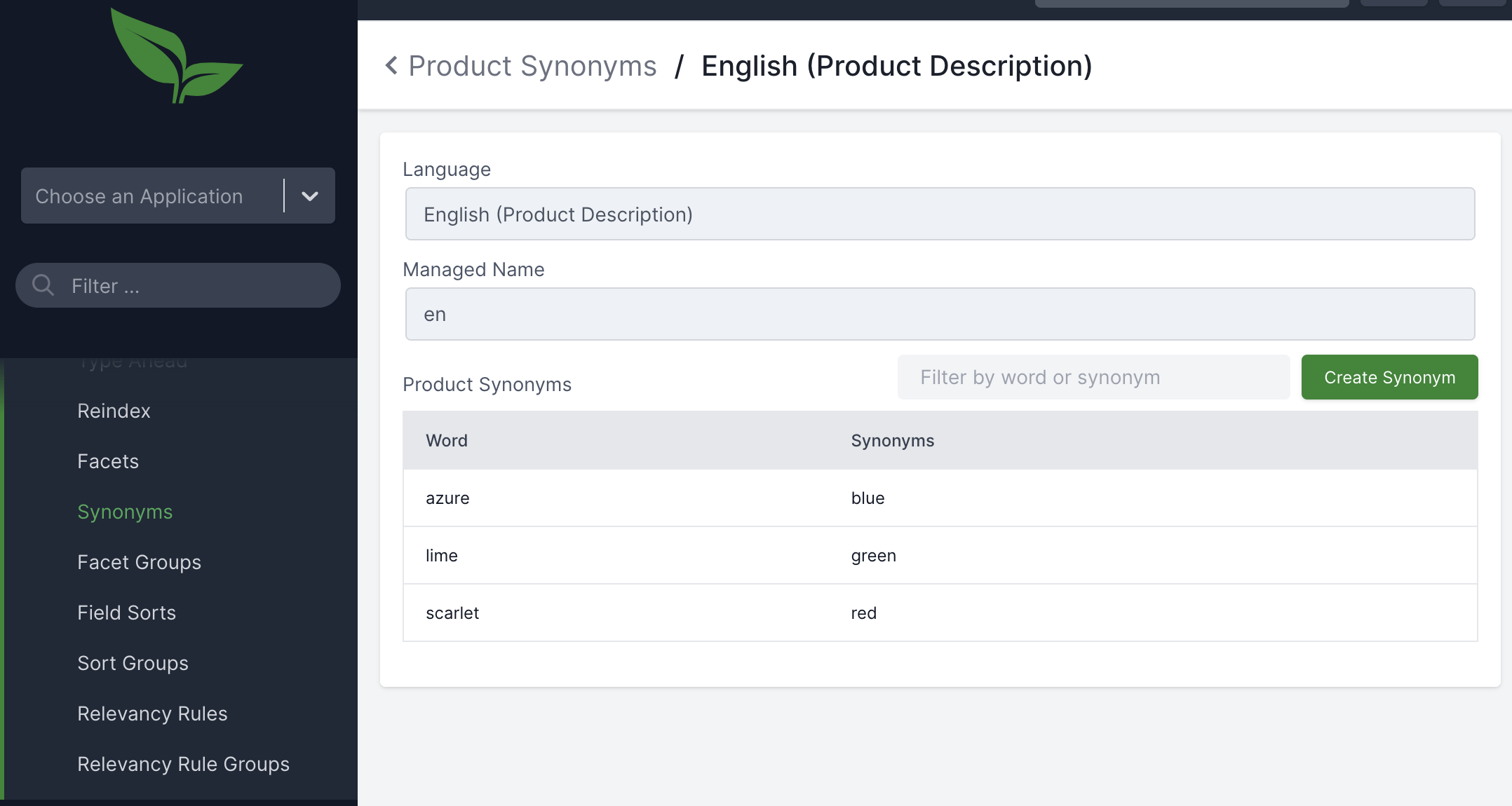
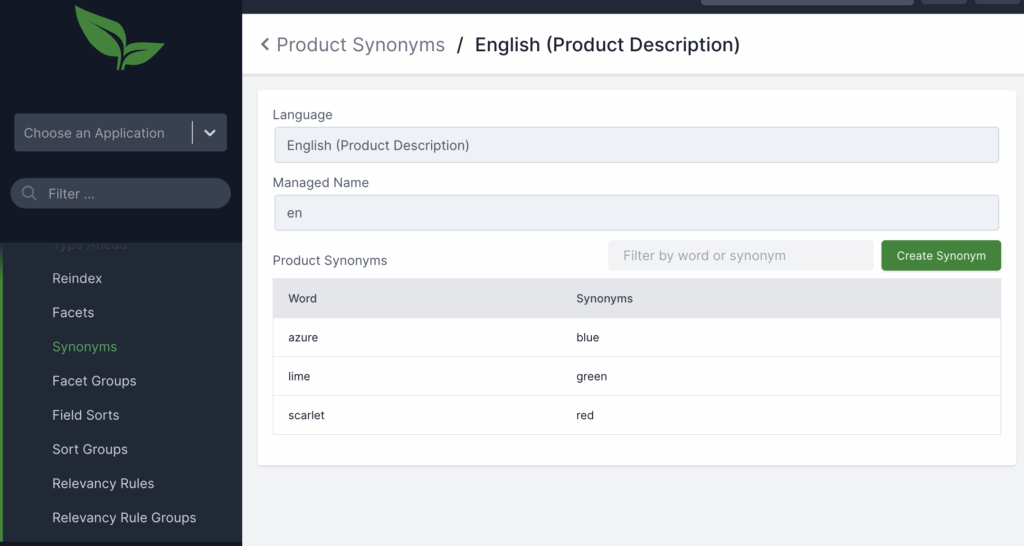
The underlying synonym functionality existed in Broadleaf's Search Services before (API interactions, initial file loading), but it wasn't publicly documented and had no admin interface. Version 2.1.5 adds admin views for managing product synonyms, making this accessible to merchandising teams rather than requiring developer configuration.
The release introduces a managed language concept - and forgive me for getting technical for just this paragraph. You define managed languages in your Solr schema (these aren't the same as locales, though they can use similar naming), then configure them in Broadleaf with labels that appear in the admin, like "English (Product Description)." Synonyms are scoped to these managed languages and to specific indexable types like products.
In the admin, you add synonym mappings by specifying a "Word" (the search term customers type) and "Synonyms" (the terms that should match in your indexed products). Using the Heat Clinic demo as an example: searching "lime" returns no results, but there's a "Green Ghost" product in the catalog. Add a mapping where "lime" points to "green," and now searching "lime" returns Green Ghost.
The update also adds support for spaces in synonyms, so you can map multi-word phrases.
A Note on Configuration
Getting synonym management working requires setup beyond enabling features in the admin. You'll need to update your Solr schema (talking tech again, I know) to include the managed synonym filter, and Solr's best practice is to choose between file-based (static) or managed (dynamic) synonyms rather than running both simultaneously. For local development, restarting your Solr container will lose any synonyms added via admin unless you've configured persistence. The Broadleaf documentation covers the specific configuration steps.
Where to Start
Pull your zero-result query report. Most commerce platforms log searches that returned no products. Look for patterns: regional terms your catalog doesn't recognize, industry abbreviations that return empty results, common alternate phrasings for your products.
Start with your highest-volume zero-result queries and create synonym mappings for them. Test each one to verify results actually improve. Remember that synonyms are directional, so think through which term is the query and which are the matches.
Build synonym review into your regular merchandising calendar. Holiday shopping brings different search behavior than spring. New product launches introduce terminology that your existing synonyms won't cover.